
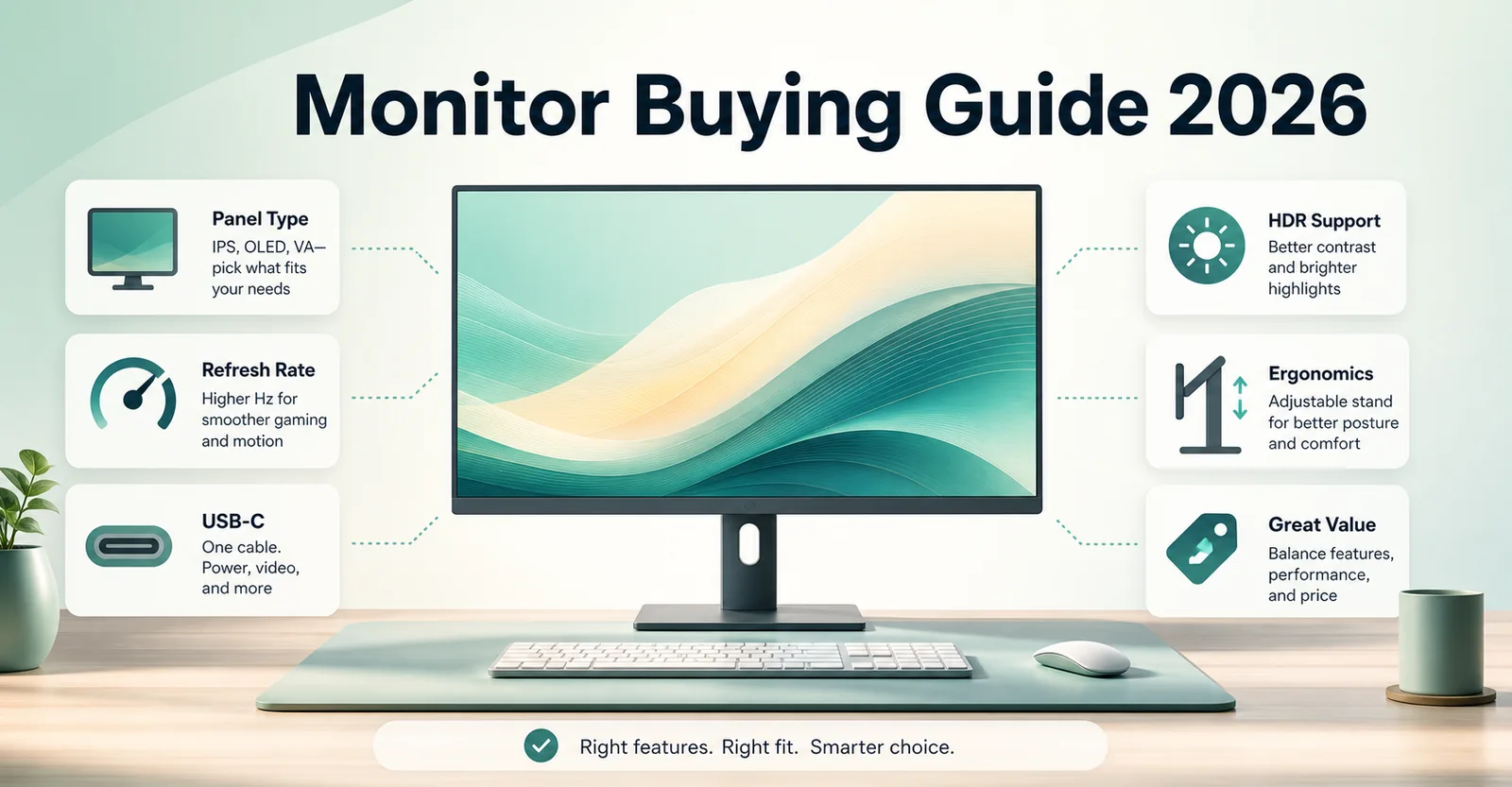
Most buyers compare processors, graphics cards, phones, and laptops for hours, but choose a monitor after a quick glance at size and price. That is a mistake. A monitor is the part of your setup you look at every day. It shapes how comfortable work feels, how sharp text looks, how responsive games feel, and how enjoyable movies or creative work become.
This Monitor Buying Guide 2026 turns the attached article into a practical decision framework. It explains the same core ideas clearly: start with your use case, choose size and resolution together, understand panel technology, avoid marketing traps, and check ergonomics, connectivity, brand support, and long-term value before you buy.
If you want to browse real models while reading, open Find Monitor. If you already have two or three shortlisted displays, use Compare monitors after this guide to see the differences side by side.
Why the monitor matters more than many PC parts
A powerful PC can render beautiful graphics, edit large timelines, and run demanding workloads, but a weak monitor can hide much of that experience. Every document, spreadsheet, game, photo, video call, and browser tab reaches you through the display. That makes the monitor one of the most important long-term purchases in a setup.
A good monitor can improve productivity, viewing comfort, gaming responsiveness, color accuracy, multitasking, and general enjoyment. Unlike a CPU or GPU, a well-chosen monitor can stay useful across multiple computer upgrades. That is why it should be treated as a long-term workspace investment, not as an afterthought.
- Better productivity because text, windows, and timelines are easier to manage.
- More comfortable viewing during long work or study sessions.
- Smoother gaming when refresh rate and response time match your system.
- More reliable color work when the panel and gamut are appropriate.
- A cleaner desk setup when ports, USB-C, and ergonomics are chosen carefully.
Choose a monitor based on your needs
Before comparing refresh rate, HDR labels, or panel names, ask one basic question: why are you buying this monitor? That question can eliminate dozens of wrong options. A monitor for office documents does not need the same strengths as a monitor for esports, video editing, programming, stock trading, console gaming, or movies.
Common monitor use cases include office productivity, remote work, gaming, video editing, graphic design, content creation, media consumption, programming, and financial analysis. Once your main use case is clear, you can stop paying for specifications that do not improve your real experience.

| Use case | What matters most | Usually avoid overpaying for |
|---|---|---|
| Office and study | Text clarity, ergonomics, eye comfort, practical size | Extreme refresh rates or premium HDR labels |
| Gaming | Refresh rate, response time, adaptive sync, GPU match | 4K resolution if your GPU cannot drive it well |
| Creative work | Color accuracy, panel consistency, resolution, screen size | Unverified color claims without calibration details |
| Programming and multitasking | Resolution, vertical space, comfortable scaling, stand adjustment | Oversized low-PPI screens that make text soft |
| Movies and HDR | Contrast, black level, HDR brightness, local dimming or OLED | Basic HDR labels on dim displays |
Choose the right monitor size
A larger monitor is not automatically better. The right size depends on desk depth, viewing distance, resolution, and how many windows you actually use. A screen that is too large for your desk can feel tiring because your eyes and neck move constantly. A screen that is too small can slow down multitasking and make text cramped.
A 24-inch monitor is still practical for students, office workers, smaller desks, and budget setups. A 27-inch monitor is the modern sweet spot for many users because it balances comfort, price, and productivity. A 32-inch monitor suits people who work with large spreadsheets, editing timelines, dashboards, or multiple windows. Ultrawide monitors can be excellent for creators, programmers, traders, and heavy multitaskers who want one wide workspace instead of two separate screens.
| Size | Best fit | Important note |
|---|---|---|
| 24 inch | Budget, study, basic office, compact desks | Works best with 1080p or 1440p depending on distance. |
| 27 inch | Mainstream productivity, gaming, mixed use | Often best with 1440p or 4K. |
| 32 inch | Creative work, spreadsheets, media, multitasking | 4K is usually more comfortable for text clarity. |
| 34 inch ultrawide | Timeline work, coding, trading, multitasking | Check desk width and curve preference before buying. |
Resolution, pixels, and PPI
Resolution means how many pixels appear on the screen. More pixels usually mean sharper text, cleaner images, and better detail. But resolution should never be judged alone. A 4K screen can look very sharp at 27 inches, while 1080p can look soft on a large display. This is why pixel density, or PPI, matters. You can test common combinations with the PPI calculator.
Common monitor resolutions include Full HD 1920 x 1080, Quad HD 2560 x 1440, Ultra HD or 4K 3840 x 2160, 5K, and 8K. For many buyers in 2026, 1440p remains a strong balance for 27-inch monitors because it improves clarity over 1080p without demanding as much GPU power as 4K. For text-heavy work, 4K becomes especially attractive at 27 to 32 inches.
Choose size and resolution together. A big screen with low pixel density can feel less premium than a smaller display with sharper text.
Panel type explained
Panel technology has a major effect on contrast, viewing angles, motion, black level, and long-term comfort. IPS, VA, OLED, and Mini-LED displays can all be good, but they are good for different reasons. For a visual comparison, use the OLED vs Mini-LED vs IPS vs VA guide.

IPS panels are popular because they offer wide viewing angles and reliable color consistency. VA panels often deliver stronger native contrast and deeper blacks than basic IPS, which can help movies and dark scenes. OLED controls each pixel individually, producing excellent blacks, very fast pixel response, and strong HDR presence, but buyers should consider brightness behavior, text rendering, warranty terms, and burn-in risk. Mini-LED is an LCD technology with local dimming zones that can improve HDR brightness and contrast when implemented well.
| Panel type | Strengths | Watch out for |
|---|---|---|
| IPS | Wide viewing angles, color consistency, all-round usability | IPS glow and weaker black levels in dark rooms. |
| VA | Better contrast and deeper blacks than many IPS displays | Slower dark transitions on weaker models. |
| OLED | Perfect blacks, excellent response, strong HDR feel | Burn-in risk, brightness limits, text-fringing on some layouts. |
| Mini-LED | High brightness and local dimming for HDR | Blooming or halo effects depend on dimming quality. |
Refresh rate, response time, and input lag
Refresh rate measures how many times a display updates every second. Traditional monitors run at 60Hz, while modern options commonly offer 120Hz, 144Hz, 165Hz, 240Hz, 360Hz, and beyond. Higher refresh rates can make cursor movement, scrolling, animation, and games feel smoother. Learn the differences visually in the refresh rate guide.
For many users, 144Hz or 165Hz is the practical sweet spot because it feels noticeably smoother than 60Hz without requiring the extreme hardware needed for very high frame rates. Competitive gamers may benefit from 240Hz or higher, but only if the PC can produce matching frame rates. Casual users should not overpay for refresh rate if resolution, text clarity, stand quality, or panel quality would matter more.
Response time and input lag are separate but related. Response time describes how quickly pixels change; slow response can create ghosting or smearing. Input lag describes how quickly your action appears on screen. Low input lag matters most for competitive gaming, while office users usually notice ergonomics and text clarity more than a 1ms marketing number.
HDR and color accuracy
HDR is one of the most confusing monitor features. A label alone does not guarantee a strong HDR experience. Real HDR needs a combination of brightness, contrast, black level, color depth, and local dimming or per-pixel control. A dim monitor with a basic HDR badge can technically accept an HDR signal while still looking unimpressive.
Color accuracy is equally important for creators. Look for meaningful information such as sRGB coverage, DCI-P3 coverage, Adobe RGB coverage, factory calibration, Delta E ratings, and hardware calibration support. For everyday users, accurate sRGB coverage is often more useful than exaggerated color marketing.
Useful external references: VESA DisplayHDR explains HDR certification tiers, and USB-IF explains USB power delivery concepts that matter for USB-C monitor setups.
Ergonomics and eye comfort
A monitor can have excellent specifications and still be frustrating if the stand is poor. Tilt, height adjustment, swivel, and pivot support can make a display much easier to use for long sessions. If a monitor has a weak stand, check whether it supports a VESA mount so you can use an arm later.
Eye comfort features can help, but they should be understood realistically. Flicker-free backlights, low blue light modes, automatic brightness adjustment, and anti-glare coatings can improve comfort for some users. The biggest comfort wins usually come from matching brightness to the room, setting a comfortable text scale, using proper viewing distance, and positioning the top of the screen near eye level. Microsoft also publishes general ergonomic workstation guidance that is useful when setting up a monitor.
Connectivity and future-proofing
A monitor is often used longer than the computer connected to it, so future connectivity matters. Important ports can include HDMI, DisplayPort, USB-C, Thunderbolt, USB hubs, Ethernet, audio out, and KVM switch support. The right mix depends on whether you use a desktop, laptop, console, or multiple devices.
USB-C is especially useful for laptop users because it can carry display signal, data, and charging through one cable when properly implemented. But not every USB-C monitor offers the same power delivery, bandwidth, or hub behavior. Always check wattage, supported display modes, and whether the monitor can run your desired resolution and refresh rate through that connection.
For brand and support signals, review Brands We Track and country-wise after-sales service experience before buying. If a monitor or brand is missing from the database, submit it through suggest a monitor or brand.
Common monitor buying mistakes
Most bad monitor purchases come from focusing on the wrong headline specification. A high refresh rate cannot fix poor text clarity. A large screen cannot fix low pixel density. A premium panel cannot fix weak ergonomics if you use the monitor eight hours a day.
- Ignoring pixel density and buying a large low-resolution screen.
- Overlooking panel technology and assuming all displays look the same.
- Buying only by price without checking stand quality, ports, and warranty.
- Trusting marketing claims without checking real brightness, HDR, or calibration details.
- Neglecting ergonomics and eye comfort for long work sessions.
- Ignoring future connectivity needs such as USB-C, HDMI version, DisplayPort bandwidth, or KVM support.
Final monitor buying checklist

| Question | Why it matters |
|---|---|
| What is my main use case? | It decides whether text clarity, refresh rate, color, HDR, or ports should lead. |
| Does size match resolution? | This protects text sharpness and viewing comfort. |
| Is the panel right for my room and work? | IPS, VA, OLED, and Mini-LED behave differently. |
| Can my PC or console drive the monitor properly? | High resolution and high refresh rate need matching hardware and cables. |
| Are the ports enough for future devices? | A monitor should survive multiple laptop or desktop upgrades. |
| Is the stand comfortable? | Ergonomics matter every day. |
| What is the warranty and service situation? | After-sales support can matter as much as specs. |
After the checklist, use Find Monitor to shortlist monitors and Compare monitors to compare your final options. A good monitor is not the one with the longest spec sheet. It is the one that fits your desk, your device, your eyes, your work, your games, and your budget without forcing unnecessary compromises.
Frequently Asked Questions
What is the best monitor size for everyday use?
For many people, 27 inches is the safest all-round size because it balances desk comfort, productivity, price, and resolution choices. Smaller desks may still be better with 24 inches, while heavy multitaskers may prefer 32 inches or ultrawide.
Is 1440p worth upgrading to from 1080p?
Yes, especially around 27 inches. 1440p gives noticeably sharper text and more workspace than 1080p without being as demanding as 4K for gaming.
Should I buy a 4K monitor?
Buy 4K if text clarity, creative work, media, or productivity matter more than very high frame rates. For gaming, make sure your GPU or console can handle the resolution at the refresh rate you expect.
Is OLED better than IPS?
OLED is better for black levels, contrast, and pixel response, but IPS can still be safer for long desktop use, text work, budget value, and static workloads. The better choice depends on your use case.
What refresh rate should I choose?
60Hz is usable for basic office work, but 144Hz or 165Hz feels much smoother for mixed use and gaming. Competitive players may prefer 240Hz or higher if their system can produce enough frames.
Are ultrawide monitors worth it?
They can be excellent for multitasking, coding, editing timelines, and trading dashboards. They are less ideal if your desk is narrow or if your main apps do not benefit from horizontal space.
How long should a quality monitor last?
A good monitor can remain useful for many years if the resolution, ports, ergonomics, and panel choice are future-proof enough for your setup.
